

 If you were like me, who always receive emails from colleagues with huge attachments (and I meant HUGE, the largest I ever received was a 10MB PowerPoint slide), you probably can understand my frustration. Every other week my mailbox will be cloaked up, and I have to clear my inbox before I can send out emails. It didn’t help that our IT admin only allocated each of us with only a pathetic 200MB mailbox quota (in this world where free mailboxes in gigabytes are not uncommon).
I don’t like to move those huge files to a local mail folder for a couple of reasons. So I came up with a method of manually save and delete the attachments, before inserting the links of the attachments into the original email. It worked well, but it is very manual. Outlook 2010 does help to simplify some of these steps, but the ‘solution’ was still very manual. I had always wanted to do a quick macro programming to simplify these steps, but too lazy to move my butt.

A message with the option to archive the attachments
Earlier, I was again spending my Saturday afternoon clearing up my mailbox. I thought enough is enough so I went to google some samples, and existing solutions so that I can get this problem nailed once and for all. (Power of internet!)
There isn’t one solution that fits my need entirely, but suffice to say, I have enough information from the net to build a version 1.0 of what I need within minutes. Here’s a quick re-collection of what I have done;
- First of all, I need to enable macro in my Microsoft Outlook. Customize Quick Access Toolbar > Customize Ribbon > Enable “Developer” tab under “Main Tabs”
- At the Developer Tab (in the main application screen), Create a new macro by navigating to Macros > Enter a new name > Create
- In the macro program, I create a subroutine that will loop through the the attachments in the email, archive each of them by exporting and deleting, and finally insert the exported attachment links into the message body of the original email. The code, which is leveraged from the net with some modification, can be found at the end of this blog post.
- Then I add the macro shortcut to the message window’s “Ribbon Bar”, so that I can “run” it immediately any time while reading an email.
- Open the message window by clicking on any of the emails.
- Go to Customize Quick Access Toolbar > Customize Ribbon
- Under “Choose commands from”, select Macros. The newly created macro should be in the list
- Under “Customize Ribbon”, Select Main Tabs.
- Create a new tab, and under the new tab that I have just created, create a new group. The new macro command has to be added under this new group. Rename the tab and the group where appropriate. I name them as “My Tab” and “Quick Stuff” respectively.
- Select the newly created macro and add it to the new group. I named the macro “Save & Link Attachment”
- Once I have done all the above, I can now open any email with an attachment, Click on “My Tab” and then “Save & Link Attachment” (or whatever you named it earlier in 4(vi)), the attachment will be saved, deleted and subsequently linked in the email automatically!
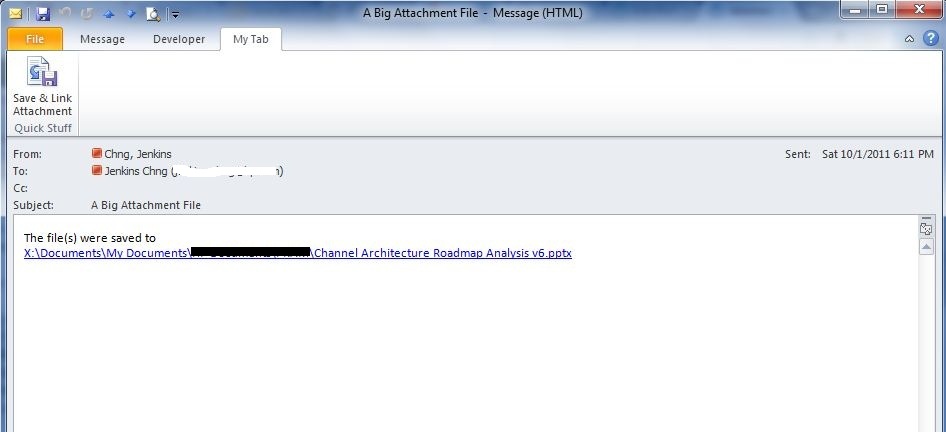
How a message looks like after the macro processing
Sub SaveAttachment()

Dim objOL As Outlook.Application
Dim objMsg As Outlook.MailItem 'Object
Dim objAttachments As Outlook.Attachments
Dim objSelection As Outlook.Selection
Dim i As Long
Dim lngCount As Long
Dim strFile As String
Dim strFolderpath As Variant
Dim strDeletedFiles As String

    ' Get the path to your My Documents folder
    'strFolderpath = CreateObject("WScript.Shell").SpecialFolders(16)
    'On Error Resume Next
    ' Instantiate an Outlook Application object.
    Set objOL = CreateObject("Outlook.Application")
    ' Get the collection of selected objects.
    Set objSelection = objOL.ActiveExplorer.Selection
    ' Set the Attachment folder.
    'strFolderpath = strFolderpath & "\OLAttachments\"
    'Use the MsgBox command to troubleshoot. Remove it from the final code.

    strFolderpath = "C:\"

    Dim MyPath As Variant
    MyPath = BrowseForFolder(strFolderpath)
    If VarType(MyPath) = 11 Then
      If Not MyPath Then
        GoTo ExitSub
      End If
    End If
    strFolderpath = MyPath

    ' Check each selected item for attachments. If attachments exist,
    ' save them to the Temp folder and strip them from the item.
    For Each objMsg In objSelection
    ' This code only strips attachments from mail items.
    ' If objMsg.class=olMail Then
    ' Get the Attachments collection of the item.
     Set objAttachments = objMsg.Attachments
     lngCount = objAttachments.Count
    'Use the MsgBox command to troubleshoot. Remove it from the final code.
    'MsgBox objAttachments.Count
     If lngCount > 0 Then
    ' We need to use a count down loop for removing items
    ' from a collection. Otherwise, the loop counter gets
    ' confused and only every other item is removed.
        For i = lngCount To 1 Step -1
        ' Save attachment before deleting from item.
        ' Get the file name.
        strFile = objAttachments.Item(i).FileName
        ' Combine with the path to the Temp folder.
        strFile = strFolderpath & "\" & strFile

        'MsgBox strFile

        ' Save the attachment as a file.
        objAttachments.Item(i).SaveAsFile strFile
        ' Delete the attachment.
        objAttachments.Item(i).Delete
        'write the save as path to a string to add to the message
        'check for html and use html tags in link
        If objMsg.BodyFormat <> olFormatHTML Then
            strDeletedFiles = strDeletedFiles & vbCrLf & "<file:>"
            Else
            strDeletedFiles = strDeletedFiles & "<br>" & "<a href='file://" & _
            strFile & "'>" & strFile & "</a>"
        End If
        'Use the MsgBox command to troubleshoot. Remove it from the final code.
        'MsgBox strDeletedFiles
        Next i
    End If
    ' Adds the filename string to the message body and save it
    ' Check for HTML body
    If objMsg.BodyFormat <> olFormatHTML Then
        objMsg.Body = "The file(s) were saved to " & strDeletedFiles & vbCrLf & vbCrLf & objMsg.Body
    Else
        objMsg.HTMLBody = "<p><p>The file(s) were saved to " & strDeletedFiles & "</p></p>" & objMsg.HTMLBody
    End If
       objMsg.Save
    'End If
    Next
ExitSub:
Set objAttachments = Nothing
Set objMsg = Nothing
Set objSelection = Nothing
Set objOL = Nothing

End Sub
I also added a function to select the folder where I want the attachment(s) to be saved in and referenced from (the message)
Function BrowseForFolder(Optional OpenAt As Variant) As Variant
     'Function purpose:  To Browser for a user selected folder.
     'If the "OpenAt" path is provided, open the browser at that directory
     'NOTE:  If invalid, it will open at the Desktop level

    Dim ShellApp As Object

    'Create a file browser window at the default folder
    Set ShellApp = CreateObject("Shell.Application"). _
    BrowseForFolder(0, "Please choose a folder to save the attachment(s)", 0, OpenAt)

     'Set the folder to that selected.  (On error in case cancelled)
    On Error Resume Next
    BrowseForFolder = ShellApp.self.Path
    On Error GoTo 0

     'Destroy the Shell Application
    Set ShellApp = Nothing

     'Check for invalid or non-entries and send to the Invalid error
     'handler if found
     'Valid selections can begin L: (where L is a letter) or
     '\\ (as in \\servername\sharename.  All others are invalid
    Select Case Mid(BrowseForFolder, 2, 1)
    Case Is = ":"
        If Left(BrowseForFolder, 1) = ":" Then GoTo Invalid
    Case Is = "\"
        If Not Left(BrowseForFolder, 1) = "\" Then GoTo Invalid
    Case Else
        GoTo Invalid
    End Select

    Exit Function

Invalid:
     'If it was determined that the selection was invalid, set to False
    BrowseForFolder = False

End Function










 zen online journal