With all the running gears I could have possibly think of, I completed 7 runs within 12 days. A casual conversation with a friend over a hearty breakfast, prompted me to explore getting heart rate monitoring device. After researching on Garmin Forerunner series and Polar RS series, I decided to get Polar RS300X. While both series offer heart rate monitoring functionality, I went for Polar simply due to the consideration the brand origins (portable heart rate monitoring for Polar, and GPS tracking for Garmin). Nevertheless, I am sure Garmin Forerunner is a good product as well.
Polar RS300X
Polar RS300X comes with a trademark Wearlink+ heart rate monitoring technology chest strap, a transmitter, and a watch that receives and records the data from the transmitter. As I discovered later, while RS300X monitors the heart beat constantly, it does not log all the raw data, but only aggregated data. What it means I would not be able to plot out how my heart rate fluctuates throughout my run, although I can tell my maximum and average heart rate, and the heart rate zone I am in during the run. It is not a big deal for me, at least for now, but for serious runner, I think a Polar RS400 or higher model range might be more suitable.
My first run with a heart rate monitoring device was revealing, and shockingly as well. My heart rate was at one point pumping at 180 beats-per-minute(above 90%), and average at 173. Running has become more scientific indeed (as when I was younger, I would just run and run). I noted that I was running at an unhealthy heart rate zone. Not only I am running close to my maximum heart rate (which is 185 beats-per-minute), it’s in a maximal or red line zone where I won’t benefit much as far as fat-burning is concerned.
By now (29th December 2011), I have completed 18.53km, over 8 runs. I knew the distance is nothing to shout about, particular to regular runners. But for someone who had not run for the last 10 years (or maybe even more), this is an amazing start, at least for me.
After my maiden run ended up torturous, I decided that I need to run more than just once a week. I knew I need to do more short run, instead trying hard to complete a long distance within a running session. The approach will also be kinder to my body I reckoned. So I began running on the alternate day. By the end of the second run, I thought my knees were giving way; Just imagine a tonne of weight bouncing on a pair of wooden stilts. I decided to get some supporting gears (and proper running shorts and shirts as well!), and that marked the beginning of my running “investments”. By the fifth run, I had all my knees and ankles “covered” up with the Nike knee and ankle sleeves.
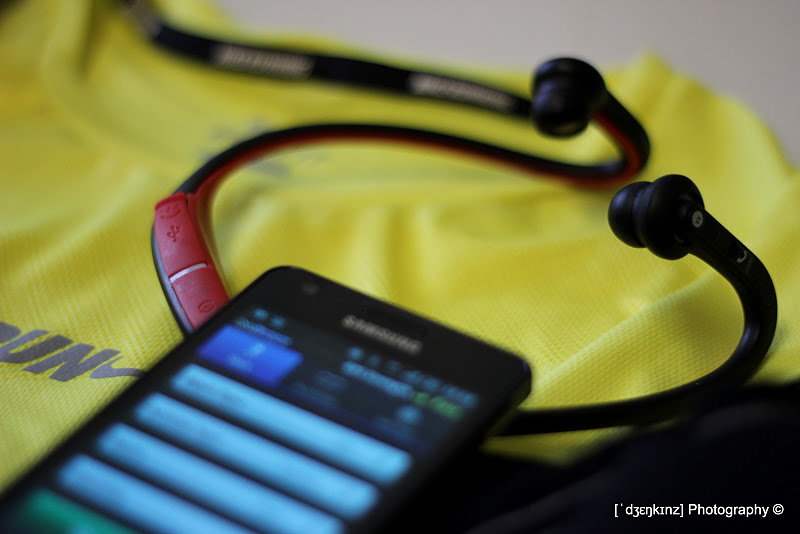
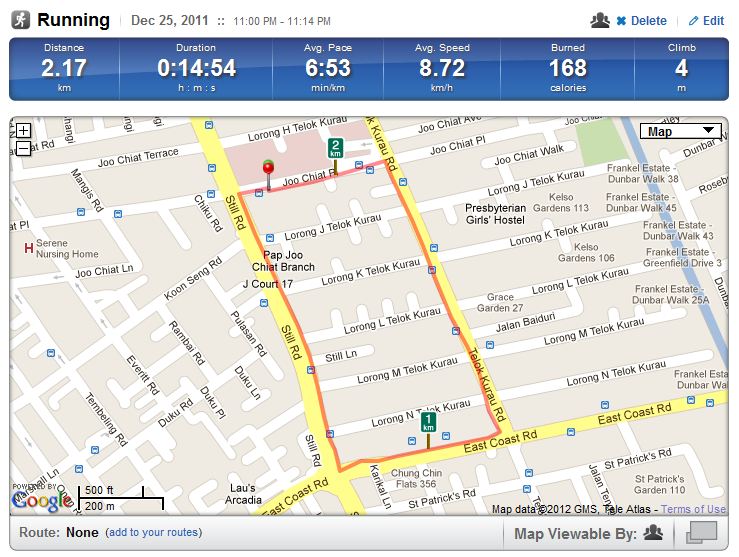
On day 10, I decided to time my run. By then, I already could feel the improvements in my breathing control and I would require fewer stops to complete the course. But the runs were getting monotonous, so perhaps timing could help to motivate further. I ended using “Runkeeper” Android app to time my run, while at the same time listen to music using my 5 years old Motorola S9 bluetooth headset. My first official timing? 2.17km in 14:54 mins, or average pace of 6.53min/km. Obviously a far cry from my official personal best record (8:05 mins for 2.4km), but compared to my maiden run ten days ago, this is a big leap.
I never had formal training for competitive running until I got enlisted in the Army. Since then, I had the opportunity to represent my unit and formation in long distance run competitions. I was at my peak of my “running career”, and also participated in a couple of marathons (finished “leisurely” and back then, taking part of marathon was never a fashion statement unlike these days)
Since I left as a civilian, I had not been maintaining my fitness level so it plunged and crashed. At one point, I did spend a couple of months reshaping my fitness, but got seriously injured along the way. And the rest is history.
Fast forward to today, I could not walked briskly for 100m without huffing and puffing, let along complete a 2.4km run. My fitness level was at the valley, while my weight was unthinkable. I seemed to fall sick easily too. As I approached the 40 years old mark, I told myself my lifestyle needs a makeover. For the last 18 months, we have been walking regularly as we would bring our Corgi furkid for a daily neighborhood walk or a weekend walk at the park . Then came the resolution recently that I need to pick up my running again.
So I dropped by Adidas store to get myself a pair of running shoes (I’m a sucker for the 3 stripes, tbh). I told myself I need to run at least once a week. But lo and behold, it turned out to be more than that.
On 15th December 2011, I started my maiden run since 2000. It was around 11pm, as I wanted to make sure the weather is cool and air is fresh. Despite that, the run was a torture one. It took me more than 18 minutes (did not time, so no exact timing) just to complete a 2.2km. I had to stop my run multiple times during the course, just to catch my breathe and recover the fatigue. By the time I completed my session, I felt like as if I had done a marathon. That was how pathetic I was. Strangely, it did not demotivate me, and instead propelled me to increase the frequency of the run (strangely as well!). And this is just the beginning …
If you were like me, who always receive emails from colleagues with huge attachments (and I meant HUGE, the largest I ever received was a 10MB PowerPoint slide), you probably can understand my frustration. Every other week my mailbox will be cloaked up, and I have to clear my inbox before I can send out emails. It didn’t help that our IT admin only allocated each of us with only a pathetic 200MB mailbox quota (in this world where free mailboxes in gigabytes are not uncommon).
I don’t like to move those huge files to a local mail folder for a couple of reasons. So I came up with a method of manually save and delete the attachments, before inserting the links of the attachments into the original email. It worked well, but it is very manual. Outlook 2010 does help to simplify some of these steps, but the ‘solution’ was still very manual. I had always wanted to do a quick macro programming to simplify these steps, but too lazy to move my butt.
A message with the option to archive the attachments
Earlier, I was again spending my Saturday afternoon clearing up my mailbox. I thought enough is enough so I went to google some samples, and existing solutions so that I can get this problem nailed once and for all. (Power of internet!)
There isn’t one solution that fits my need entirely, but suffice to say, I have enough information from the net to build a version 1.0 of what I need within minutes. Here’s a quick re-collection of what I have done;
First of all, I need to enable macro in my Microsoft Outlook. Customize Quick Access Toolbar > Customize Ribbon > Enable “Developer” tab under “Main Tabs”
At the Developer Tab (in the main application screen), Create a new macro by navigating to Macros > Enter a new name > Create
In the macro program, I create a subroutine that will loop through the the attachments in the email, archive each of them by exporting and deleting, and finally insert the exported attachment links into the message body of the original email. The code, which is leveraged from the net with some modification, can be found at the end of this blog post.
Then I add the macro shortcut to the message window’s “Ribbon Bar”, so that I can “run” it immediately any time while reading an email.
Open the message window by clicking on any of the emails.
Go to Customize Quick Access Toolbar > Customize Ribbon
Under “Choose commands from”, select Macros. The newly created macro should be in the list
Under “Customize Ribbon”, Select Main Tabs.
Create a new tab, and under the new tab that I have just created, create a new group. The new macro command has to be added under this new group. Rename the tab and the group where appropriate. I name them as “My Tab” and “Quick Stuff” respectively.
Select the newly created macro and add it to the new group. I named the macro “Save & Link Attachment”
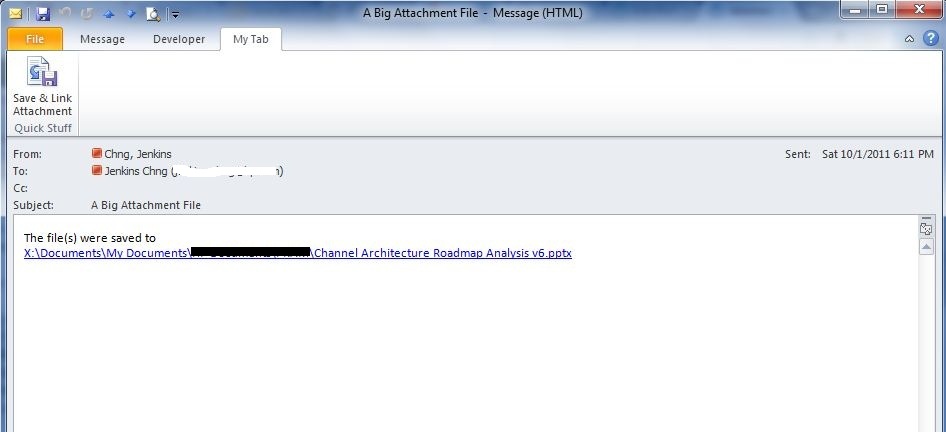
Once I have done all the above, I can now open any email with an attachment, Click on “My Tab” and then “Save & Link Attachment” (or whatever you named it earlier in 4(vi)), the attachment will be saved, deleted and subsequently linked in the email automatically!
How a message looks like after the macro processing
Here is the subroutine that checks for attachments existence before doing the necessary file and messaging operations. If you want your attachment(s) to be saved in specific folder (and its sub folder), you can always modify the value of the variable strFolderpath
Sub SaveAttachment()

Dim objOL As Outlook.Application
Dim objMsg As Outlook.MailItem 'Object
Dim objAttachments As Outlook.Attachments
Dim objSelection As Outlook.Selection
Dim i As Long
Dim lngCount As Long
Dim strFile As String
Dim strFolderpath As Variant
Dim strDeletedFiles As String

    ' Get the path to your My Documents folder
    'strFolderpath = CreateObject("WScript.Shell").SpecialFolders(16)
    'On Error Resume Next
    ' Instantiate an Outlook Application object.
    Set objOL = CreateObject("Outlook.Application")
    ' Get the collection of selected objects.
    Set objSelection = objOL.ActiveExplorer.Selection
    ' Set the Attachment folder.
    'strFolderpath = strFolderpath & "\OLAttachments\"
    'Use the MsgBox command to troubleshoot. Remove it from the final code.

    strFolderpath = "C:\"

    Dim MyPath As Variant
    MyPath = BrowseForFolder(strFolderpath)
    If VarType(MyPath) = 11 Then
      If Not MyPath Then
        GoTo ExitSub
      End If
    End If
    strFolderpath = MyPath

    ' Check each selected item for attachments. If attachments exist,
    ' save them to the Temp folder and strip them from the item.
    For Each objMsg In objSelection
    ' This code only strips attachments from mail items.
    ' If objMsg.class=olMail Then
    ' Get the Attachments collection of the item.
     Set objAttachments = objMsg.Attachments
     lngCount = objAttachments.Count
    'Use the MsgBox command to troubleshoot. Remove it from the final code.
    'MsgBox objAttachments.Count
     If lngCount > 0 Then
    ' We need to use a count down loop for removing items
    ' from a collection. Otherwise, the loop counter gets
    ' confused and only every other item is removed.
        For i = lngCount To 1 Step -1
        ' Save attachment before deleting from item.
        ' Get the file name.
        strFile = objAttachments.Item(i).FileName
        ' Combine with the path to the Temp folder.
        strFile = strFolderpath & "\" & strFile

        'MsgBox strFile

        ' Save the attachment as a file.
        objAttachments.Item(i).SaveAsFile strFile
        ' Delete the attachment.
        objAttachments.Item(i).Delete
        'write the save as path to a string to add to the message
        'check for html and use html tags in link
        If objMsg.BodyFormat <> olFormatHTML Then
            strDeletedFiles = strDeletedFiles & vbCrLf & "<file:>"
            Else
            strDeletedFiles = strDeletedFiles & "<br>" & "<a href='file://" & _
            strFile & "'>" & strFile & "</a>"
        End If
        'Use the MsgBox command to troubleshoot. Remove it from the final code.
        'MsgBox strDeletedFiles
        Next i
    End If
    ' Adds the filename string to the message body and save it
    ' Check for HTML body
    If objMsg.BodyFormat <> olFormatHTML Then
        objMsg.Body = "The file(s) were saved to " & strDeletedFiles & vbCrLf & vbCrLf & objMsg.Body
    Else
        objMsg.HTMLBody = "<p><p>The file(s) were saved to " & strDeletedFiles & "</p></p>" & objMsg.HTMLBody
    End If
       objMsg.Save
    'End If
    Next
ExitSub:
Set objAttachments = Nothing
Set objMsg = Nothing
Set objSelection = Nothing
Set objOL = Nothing

End Sub
I also added a function to select the folder where I want the attachment(s) to be saved in and referenced from (the message)
Function BrowseForFolder(Optional OpenAt As Variant) As Variant
     'Function purpose:  To Browser for a user selected folder.
     'If the "OpenAt" path is provided, open the browser at that directory
     'NOTE:  If invalid, it will open at the Desktop level

    Dim ShellApp As Object

    'Create a file browser window at the default folder
    Set ShellApp = CreateObject("Shell.Application"). _
    BrowseForFolder(0, "Please choose a folder to save the attachment(s)", 0, OpenAt)

     'Set the folder to that selected.  (On error in case cancelled)
    On Error Resume Next
    BrowseForFolder = ShellApp.self.Path
    On Error GoTo 0

     'Destroy the Shell Application
    Set ShellApp = Nothing

     'Check for invalid or non-entries and send to the Invalid error
     'handler if found
     'Valid selections can begin L: (where L is a letter) or
     '\\ (as in \\servername\sharename.  All others are invalid
    Select Case Mid(BrowseForFolder, 2, 1)
    Case Is = ":"
        If Left(BrowseForFolder, 1) = ":" Then GoTo Invalid
    Case Is = "\"
        If Not Left(BrowseForFolder, 1) = "\" Then GoTo Invalid
    Case Else
        GoTo Invalid
    End Select

    Exit Function

Invalid:
     'If it was determined that the selection was invalid, set to False
    BrowseForFolder = False

End Function
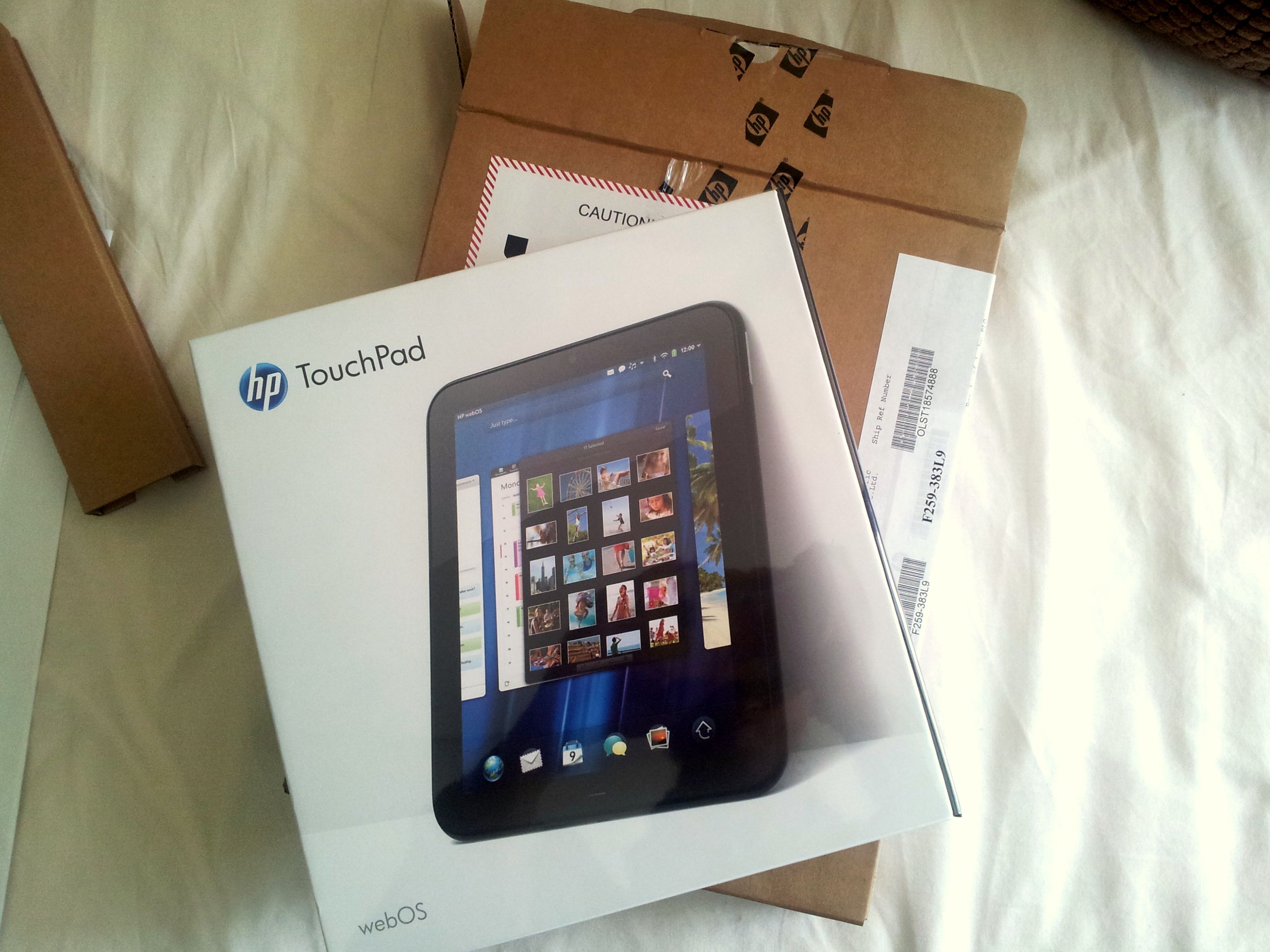
I am a big fan of Palm products. Those days it was cool to carry a Palm PDA, and if my memory did not fail me, my first Palm product was a Palm Pilot series. Palm gave me the impression of building nifty products but not a world shaker one. However when the webOS was first unveiled in 2009, I thought it is the mobile platform to go, with Windows and Linux both dominating the desktop market. The thoughts of web connected device, taking advantage of the Web 2.0 technologies, was just salivating.
Since then, a handful of Palm devices were launched sporting WebOS. I love the simple interface but the form factor never grew on me. With the products mostly focused in the US market, strangely if I may add, I never got to own one until now. Then HP acquired Palm, and it got me lighted up. A PC giant (or a ex PDA big player in Jornado and iPAQ), and an promising next generation mobile OS maker, perfect marriage or a disastrous divorce in making? Continue reading →
Whenever i hear such a claim, on any product for that matter, i always wonder what is the context of the “best”. You see unless the product excels in all departments, i.e. it is the purrrrr -fect product in comparison to its competitors (see there is still a context) it can’t be the best.
Take the category of smartphone as an example. I would rate HTC for its famed Sense experience, which help to ramp up a newbie experience with Android (and Windows Mobile previously). On the other hand I see SonyEricsson being in the leader in its camera functionality having used its Xperia Arc and compared it with all the Galaxy S series. That said, HTC Sense is getting too complicated as the company tries to be sophisticated for its products to be ‘smart’. But I have digressed.
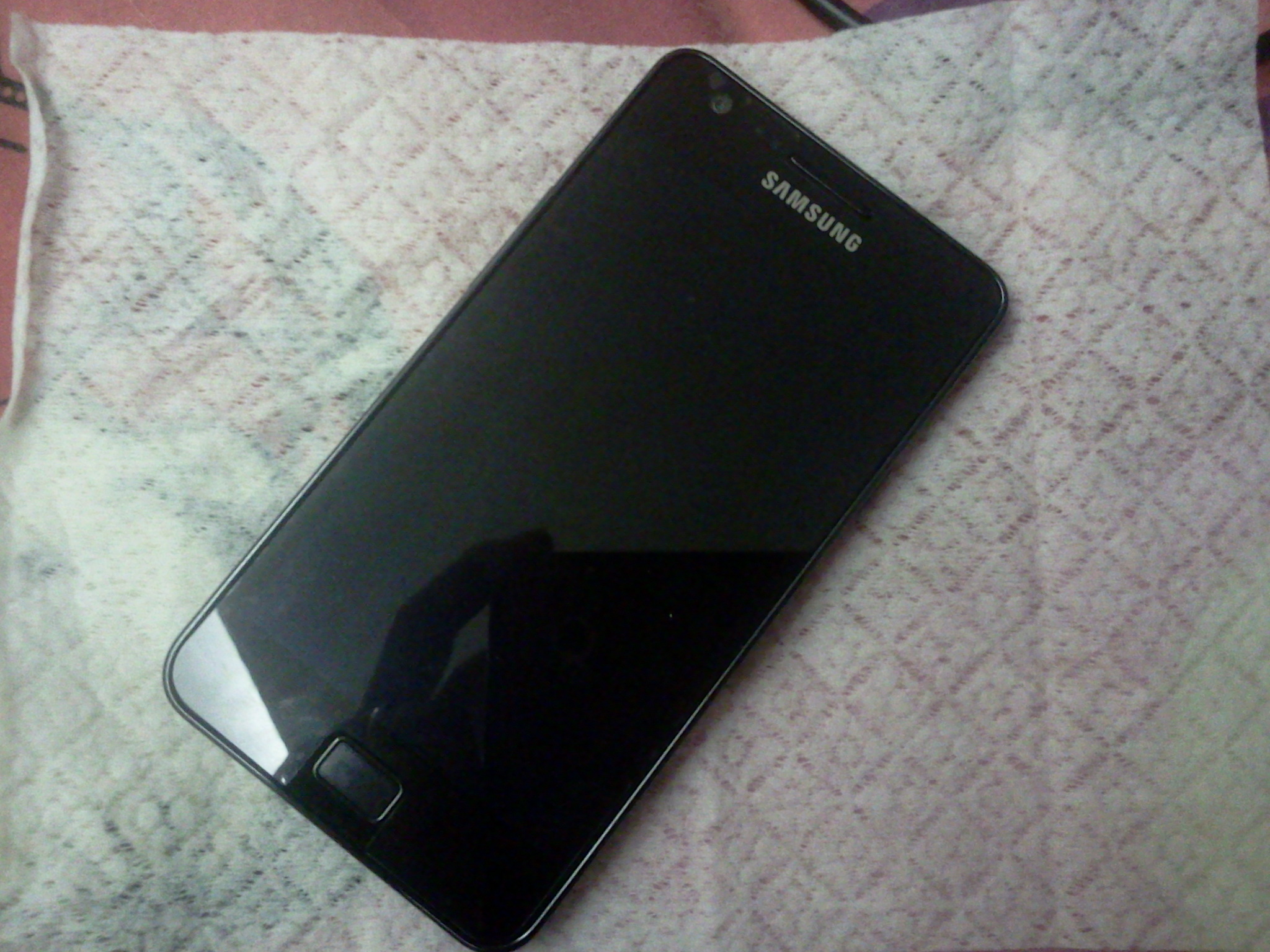
So when I read reports that raved the new Samsung Galaxy S II as the best Android smartphone to date I thought it is a bold statement. Don’t get me wrong as I think it is yet another fine product by the Korean company but that statement needs to be contextualized. Continue reading →
A couple of years ago, when SonyEricsson decided to re-invent their new flagship mobile product in Xperia X1, I bought their vision, literally. The phone, despite running on Windows Mobile platform, wowed me with their sleek design and their UI panel concept. Hey, I even contributed to their vision by developing a navigation panel. The quality of the phone was far from perfect, and I promptly returned the phone back to the service centre when they offered a buy-back proposal to appease my dissatisfaction. That was my last impression of a Xperia product. Continue reading →
Recently, I have been meddling with Android theme resources to modify the theme for my Android-based Galaxy Tab. It was yet another great learning process, which involves manipulating the graphic resources, replacing the de-compiled XMLs that control the layouts and styling of the interface, etc. Just as I thought I had enough of them, I fumbled on a theming problem which seemed so impossible to fix. I pinpointed the offending code, created the right “answer” to the problem, but it just didn’t work!
Almost giving up, I decided to trace the source code of the module. It turns out that the code explicitly sets the color of the text (the theming “bug”), and thus all the layout and style modification attempts would not have any effect at all.
Instead of going back to source codes for changes, I contemplated reverse-engineering. Thankfully with the help of smali, an assembler/disassembler tool for Android apk, I could correct the problem on the executable directly. Addictive Tips gave a good overview of an Android application in ODEX and DEODEX format,
WHAT IS AN ODEX FILE?
In Android file system, applications come in packages with the extension .apk. These application packages, or APKs contain certain .odex files whose supposed function is to save space. These ‘odex’ files are actually collections of parts of an application that are optimized before booting. Doing so speeds up the boot process, as it preloads part of an application. On the other hand, it also makes hacking those applications difficult because a part of the coding has already been extracted to another location before execution.
THEN COMES DEODEX
Deodexing is basically repackaging of these APKs in a certain way, such that they are reassembled intoclasses.dex files. By doing that, all pieces of an application package are put together back in one place, thus eliminating the worry of a modified APK conflicting with some separate odexed parts.
In summary, Deodexed ROMs (or APKs) have all their application packages put back together in one place, allowing for easy modification such as theming. Since no pieces of code are coming from any external location, custom ROMs or APKs are always deodexed to ensure integrity.
So before I could attempt the “hack”, the application must be DEODEX’ed, so that we have the complete executable for disassembly. The executable in Android system is in .dex format, or Dalvik Executable, and is stored as classes.dex within the Android Package (.apk) along with other application resources (graphic resources, layout binaries, etc). I extracted out the classes.dex, and do a disassembly.
java -jar baksmali.jar -o out classes.dex
This will disassemble the executable classes.dex into assembly codes in the folder named out. This step can be skipped if you have previously used APK Tool to decompile Android package to access to the XML codes. The latter however would not assemble the assembly codes when you compile using the tool, so the subsequent steps would still be required if you have made changes to the assembly code.
In my case, the offending code is ManageApplications$ApplicationsAdapter, and the section of the code matches the
I simply commented off the third line in the above section of the code, which effectively eliminates the set color instruction. I proceeded to re-assemble the codes,
java -jar smali.jar -o classes.dex out
The output of the assembler is a modified classes.dex, which I then re-package it to the original APK (Settings.apk).
It has been more than 3 months since I have gotten myself a Desire HD. Usually I would be excited with the new phone, and would blog about it like I did with my Galaxy Tab and Galaxy S. Somehow, with Desire HD, I have been dragging my feet (or rather my fingers) to blog about my thoughts of the HTC latest flagship Android gadget. It was mostly disappointments that piled up one after another, and I tell you why.
HTC Desire HD
When I first had my hands on the Desire HD, I actually thought I fell in love with it. The overall quality is just what you would have expected from HTC; The use of good quality material (over some cheap plastic material assembly), the polished user interface including the initial set up process. The phone feels heavy but it makes you think of the good solid material instead of the negative aspect of the weight. The tactile feedback on the screen gives a “tight, controlled mechanical” response you would expect from a high quality haptic technology based components. The initial take of the phone then was this should be what HTC Desire was 6 months ago. But it turned out to be more than 6 months gap.
Like all romances, love at first sight is never definitive, and with Desire HD it is a good classic example of that. The quality one can expect from HTC is not just about the positive ones. There were still alignment issues with the housing and casing covers, and the stability of the HTC applications that were bundled with the phone remained questionable, just to name a few. Before this blog entry degenerates into rants, let me just highlight three key areas that had subdued my enthusiasm about this phone.
With all the fantastic technical specifications that Desire HD is carrying, the phone fails miserably in the screen display and camera department (of course in my humble opinion). If Samsung Galaxy S had changed my perception about what a mobile phone can do as far as video recording and playback are concerned, Desire HD proved why the former is the best selling Android phone in the marketplace today. That is despite all the great things you can find about the phone itself. At a first glance, Desire HD screen display looked fabulous. The Super LCD screen appeared to have match the bar set by Samsung’s Super AMOLED screen. But when I placed my Desire HD and Galaxy S side by side, my jaws dropped and I was almost screaming, “What is so super about the SLCD!?”.
From the video below, the display on Desire HD is simply washed out. The display colors looked faded and flat, whereas in the Samsung devices they looked vibrant. Looked at the contrast and brightness! The conclusion I got? I would never want to watch any movie on my Desire HD, if I happen to spot somebody around me carrying a Samsung Galaxy S.
Moving on to the video recording capability. Despite the specification of being able to take 720p video, Desire HD was never able to match the video recording capability I had experienced in Galaxy S. The ghostly motion effect is still there, especially if the video is taken in an indoor setup (flash is a moot point because I could record a smooth video indoor with Galaxy S). If that was not bad enough, there was a severe bug in Desire HD, that resulted in video recorded with random stuttering effect. So when you are trying to take a HD video, this bug becomes a big joke. Incidentally this bug occurred only when I set the video camera mode to 720p. Essentially, the phone had problem recording at 30 frames per second in high definition. There are “dirty” workarounds, but I was never happy with this video recording function since day one.
a sample of video recording using Desire HD. Notice the freeze in 0:16 frame.
Then comes the software aspect of the phone. I remembered when I first got HTC HD2 more than a year ago, I had to endure the buggy SMS application for more than 2 months. If text messaging is an essential mobile function for you, that bug effectively rendered the phone unusable. Despite the bad experience, I remained hopeful when Desire HD was first launched in the market. HTC development team must have learnt a big lesson out from that saga and delivered a better quality product this time round.
How wrong was I again! One of the selling point of Desire HD is that it is “smarter” than before with its Htcsense.com. The latter is essentially a service based feature which enables the phone owner to locate and control the phone remotely. Theoretically one can locate the phone with the help of GPS, or initiate a ringing on the phone so you can locate its presence acoustically. One can even initiate remotely, to redirect phone calls and text messages, or wipe out data in case of emergency. Sounds great isn’t it? And of course I said that is in theory, because until last month, I could do nothing of these, even though these were advertised features. The HTC support acknowledged that the performance stricken services (or applications) in htcsense.com were buggy and the development team was working on it. Being an IT-trained professional, I can understand how software can never be perfectly free of bug. However, the line should be clear between a software in alpha stage versus one that is go-to-market ready. HTCsense.com was clearly at a former stage, so it baffled me why the product was being launched in the first place. Perhaps it should not come as a surprise given the pressure to launch in the market, but it looked like somebody in HTC had done his maths. That the market share gain (through early product launch) will take care of the market share loss (due to the product quality problem).
A web-based service that looks good but not functional at all
On the otherhand, the HTCsense.com could also be more smarter than it is. As of now the services become useless when the phone battery get depleted. Imagine you discover that you have left your phone at home when you reach the office. You want to remotely redirect your phone calls and/or text messages, only to find out that your phone is “uncontactable” because it runs out of battery. But I digress.
In all my correspondences with HTC support, it was clear to me that they could not commit a time to fix the problems. I gave up, and was looking to sell away the phone, or to do something about the phone myself. With xda-developers.com, I could save a hell lot of my time from building my own ROM or optimizing my kernel which I did for my previous phones. I found Leedroid custom ROM and kernel, flashed it, and the phone finally became what it should really be in the first place. However, there are things that do not change, such as the hardware limiting issues (i.e. screen display). In other cases, such as the overall product and customer experience with HTC, it is almost like a carbon copy of the previous one when I had HD2.
I have never had a desire to get a tablet, even when Apple introduced their iPad earlier this year. Lately, I got a Kindle for my e-reading needs. It had all I need for reading purposes except that when it comes to reading magazine, it becomes dull and boring. So when the news of 7″-sized Creative ZiiO and Samsung Galaxy Tab were released, I began to evaluate them with earnest, hoping to find one that could supplement Kindle. iPad was still out of the question because it’s supposedly “cutting-edge” size turns out to be the biggest inhibitor to be an effective e-reader.
I ended up with Galaxy Tab, which is 2.7″ smaller than an iPad (thus easier to hold as an e-book) and nearly half the weight of iPad (wouldn’t feel tired even with one hand holding the Tab). I admit I am a sucker for latest (and greatest) technologies. Creative ZiiO, despite being competent as e-reader and general tablet purposes, did not win me over with their less impressive touch display. And with Samsung Galaxy Tab’s Super AMOLED display, the Tab was just calling for me.
Unboxing the Tab
The first un-boxing impression was not as spectacular as thought, probably because I was staring at the tablet as an oversized Galaxy S smartphone that I owned before. But the tablet won me over shortly after a initial usage. The quality of the tablet exterior is top notched, and would put HTC phones to shame really (more on that later when I blog HTC Desire HD). The white piano finishing at the back housing makes one wonder why Samsung did not do the same for its little sibling (i.e. Galaxy S) which has a black “plasticky” casing. If I had to nit-pick, it will be the black trimming which breaks the seamless white tablet design.
Galaxy Tab is fast and responsive
Functionally, the tablet is responsive, in contrast to some of the lag claims alleged in the net. The navigation experience is smooth and snappy, the applications are lag-free and responsive. But as with Galaxy S, I could not stand the i-Phone like home screen interface, and thus wasted no time in replacing it with Launcher Pro Plus. Even though I bought the tablet with the e-reading as the primary function, I was keen to ensure it remains competent in other aspect of tablet features, and that it is not just an expensive e-reader. Setting up google and exchange account sync was a breeze, and I could access my both personal and work emails/contacts/appointments with ease. In comparing with my “SSD enabled, 6G DDR3 super-charged, almost instant-on” HP Envy laptop or my “depending on the time of the year” smartphone, I admit using my Tab for a quick ad-hoc email read/reply has become a natural and preferred choice these days.
Tab on Viva Casing
Switching gear to the entertainment aspect, the Tab serves well as a gaming machine and a media player. Apart from the ‘mindless game’ like Angry Bird or Farm Story (which is the only reason my wife would seize my Tab for) the Tab demonstrated its gaming ability in graphic intensive games such as EA Mobile’s Need for Speed and Gameloft’s Sandstorm. Perhaps a 10″ tablet would be more visually pleasing in such circumstances, but frankly, if I need a bigger screen I would have gone with my Ps3 and 46″ Samsung 3D LED Full HD TV. A 7″ tablet has indeed brought the mobile gaming experience to a new level, as games were previously played in a 2.8″ to 4.3″ screen displays.
When it comes to media playing ability, the feature can and should be assessed in two folds. At the very basic, a media playing device should have hardware capable of playing most if not all HD media format, such as DivX, Xvid, AVCH. No doubt there are applications like VPlayer and RockPlayer which could play most of these formats, but you would get better quality playback with hardware decoding, especially if you are playing HD videos. Samsung, being a home entertainment specialist, just does it so well in this aspect with the Tab, something that HTC fails to deliver even with their latest flagship product. At the next level, one should look at the gadget’s media streaming capability. If playing a local HD media well is now established as a basic function, sharing HD media to/from a remote media player/server would be the advance feature you could look at. However, once you experienced it, I bet you would want to make sure your next gadget would retain such functionality.
While services such as YouTube or Blinkx Beat had kick started the craze in video sharing through the internet, I still stand by my opinion that Digital Living Network Alliance (DLNA) certified devices will be the one that digitise how we would capture, stored and shared our precious moments with our loved ones. DLNA defines the standards and technologies on which consumer appliances would connect with another for the purpose of sharing musics, videos and photos. I first came across this concept more than half a decade ago, and it is only recent that it caught the general consumer awareness. Unfortunately, the AllShare app found in the Tab is buggy and less functional than that found in other Samsung devices. Fortunately, it is a software-related feature, and we can therefore find software alternatives, as long as we have the hardware-dependent basic function (i.e. media player).
A quick explanation on this point; DLNA-certified devices enable one to discover or share media content with one another. Once the media content is discovered, identified for sharing/playing, it is back to the device itself to stream (possibly transcode during the process) or render (to decode the format and playback) the content in question. The former can be achieved via software, whereas the latter is best accomplished with the help of hardware. For what is worth, Apple does not support DLNA, and uses its own “Air-play” to share media in “Apple universe”.
So far, I find UPnPlayer (downloadable from Android Market) the most complete software as far as DLNA feature is concerned. It is the only DLNA player that could support all type of media content (i.e. music, photo and video). The key shortcoming would be its unpolished user interface, but functionally, it is one of the best, if not the best out there. There are other good DLNA players, such as 2Player, but they would either support only 1 type of media sharing or have certain features broken.
Kindle for Android on Tab
Coming back to my original intent of getting the tablet, e-Reading, I was so pleased when Amazon recently updated their Kindle for Android app to support both magazine and newspaper. If you recall, magazine and newspaper e-reading was my main reason for getting a tablet to compliment my Kindle device. I was shocked when I first found out that the older version of Kindle for Android app could only support e-books (i.e. not magazine or newspapers). So the update was very timely, at the time when I got the Tab. With a 7″ Tab, a perfect size for e-reader in my opinion, I can now enjoy reading The Economist and Herald Tribune on my Tab, in full color — but only when my wife is not playing her Angry Bird and the likes. 🙂
While Galaxy Tab has met or exceed most of my expectations, it is still not a perfect gadget to say the least. There are many irritants; Battery life is probably a couple of hours weaker than what an iPad can offer; Inserting or Removal of SIM card will require the tablet to reboot (probably a Android/Froyo problem) , and it is a tad too big to be used as a voice phone. While I had subscribed a new line for the Tab, and am using it as a phone with the help of bluetooth headset (in avoidance of pressing the big screen against my face during a phone call), it is still not a phone you would bring in every occasion. But as the saying goes, if there exists a perfect device, that will mark the end of the hunt for one. And when that happens, it will be a miserable day for a gadget fan like me. So I would be more than happy to let the pursuit continues!







 zen online journal